


Connecting Account to Einstein Activity Capture with User-Level OAuth

Mar 04, 2026
If you have used User-Level OAuth to configure Einstein Activity Capture with G-Suite or Exchange, your Users will need to connect, or sometimes reconnect, their email accounts with Einstein Activity Capture. To do so, you and your Users can follow the steps listed below.
Prior to following these steps, please ensure that your Admin has assigned the Standard Einstein Activity Capture Permission Set to your User in Setup. See, Permission Sets on how the Admin for your Elements organization can assign this to your User.
- Click on the avatar or picture in the top right-hand corner and click Settings
- One you're in your User Settings, you'll see a label in the left-hand side for Connected Accounts. You'll click on this dropdown and then select Email and Calendar Accounts
- Depending on whether you have already connected an account or not will determine what you will see on the Email and Calendar Accounts page and how you will proceed
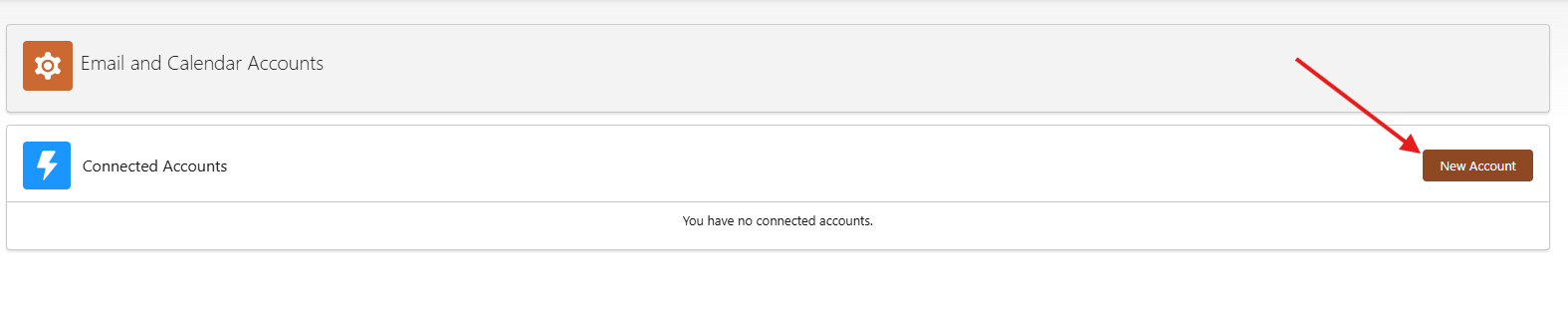
- If you are connecting an account for the first time then the page will appear similar to the screenshot below. In that case, you will click New Account, which will prompt you to input the credentials for your email account
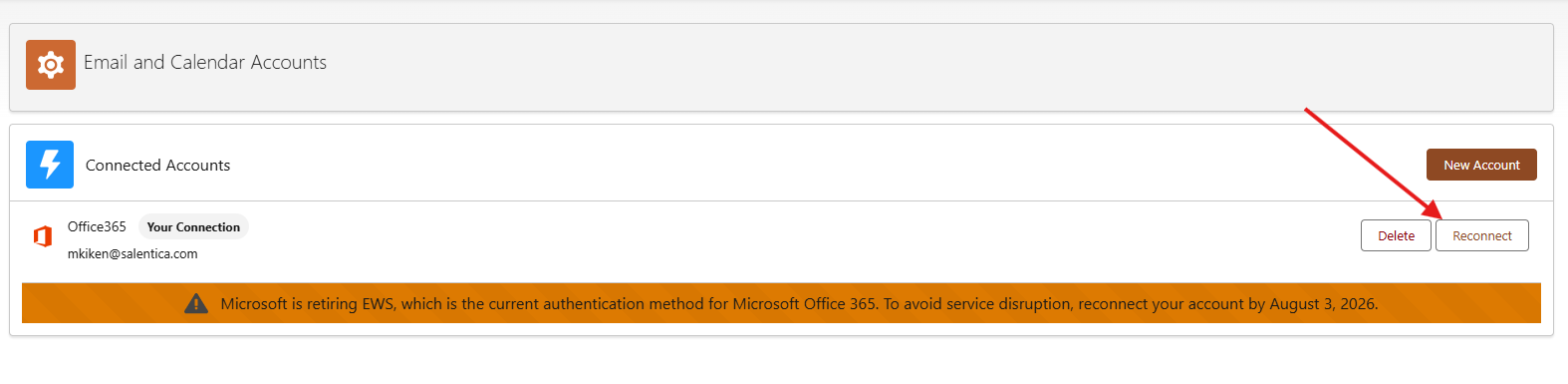
- If you already have connected account and need to reconnect it then the page will appear similar to the screenshot below. You may need to do this if your account is unable to connect between your email client and Salesforce as expected. In that case, you will click Reconnect, which will prompt you to input the credentials for your email account
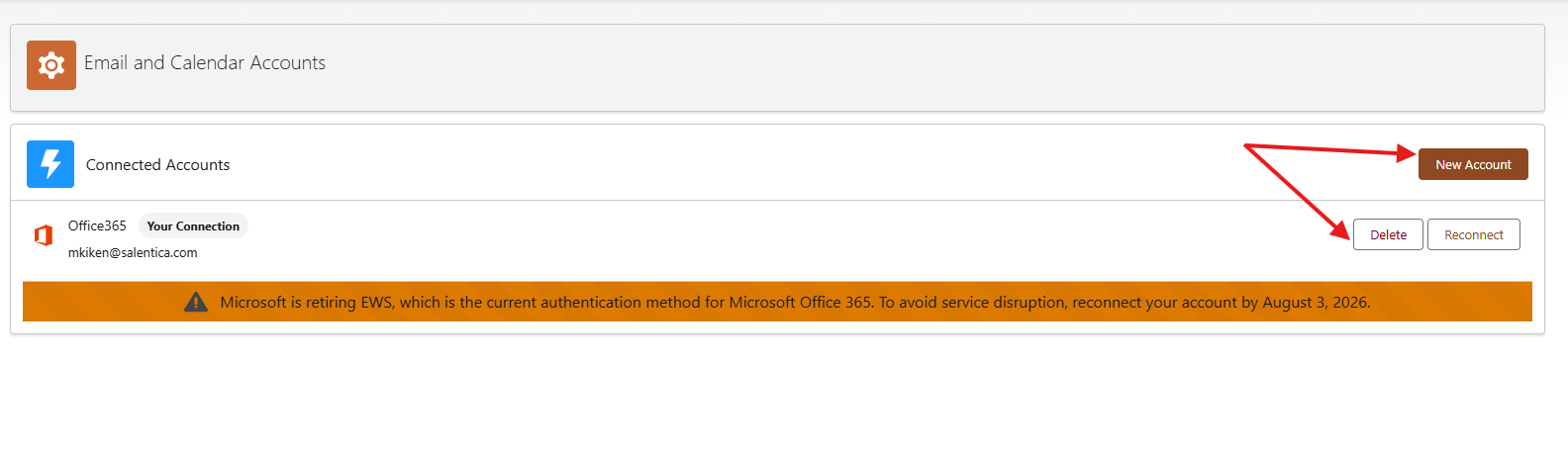
- If you already have connected an account and need to delete the connection and connect a new account then the page will appear similar to the screenshot below. You may need to do this if your firm changed their domain name due to a name change, acquisition, or if your email address changed. In that case, you will click Delete and then click New Account, which will prompt you to input the credentials for your email account
- If you are connecting an account for the first time then the page will appear similar to the screenshot below. In that case, you will click New Account, which will prompt you to input the credentials for your email account

