


This article includes links to outside resources. We are not responsible for the content on the external site. If there is a link that does not work, please email [email protected] and we will attempt to adjust the information with an updated link.
The Elements Service Team will provide support within Salesforce and Elements. If you or the team that manages your Microsoft Tenant requires support when configuring Microsoft Graph, please work with Microsoft Support directly.
What is Changing
In an effort to increase security within their infrastructure, Microsoft is retiring Exchange Web Services (EWS) connections with external applications starting October 1, 2026. This retirement includes the connection that has been historically used to connect Microsoft Exchange and Outlook to Salesforce. In order to maintain these connections on an ongoing basis, Microsoft introduced an updated API called Microsoft Graph. If the following banner displays in your Elements organization then that means that your firm is using EWS to connect it with Exchange.

This article will walk through what steps you will need to take depending on whether your Elements organization is currently connected to Exchange through Lightning Sync or Einstein Activity Capture (EAC), what our role will be throughout this process, and what teams you will need to work with to help with these changes on Microsoft.
Lightning Sync
With the retirement of EWS connections with Salesforce, Salesforce will no longer be supporting Lightning Sync moving forward. As a result, if your firm is currently using Lightning Sync to connect with then you will need to first need to migrate from Lightning Sync to Einstein Activity Capture. The steps and screenshots below will help you to identify whether your firm is using Lightning Sync.
- Click the gear in the top right-hand corner and click Setup from the dropdown that will appear
- Once you're in Setup, click in the Quick Find on the left-hand side and type in Outlook Integration and Sync and click on the link with the same label
- Once you're on the Outlook Integration and Sync page, you will see one of two screens which will determine whether you're currently using Lightning Sync or not
If the page looks similar to the two shown below then that means that either your firm was originally setup with Einstein Activity Capture or you have already migrated from Lightning Sync to Einstein Activity Capture. If this is the case then you can proceed to the section with steps for Einstein Activity Capture.
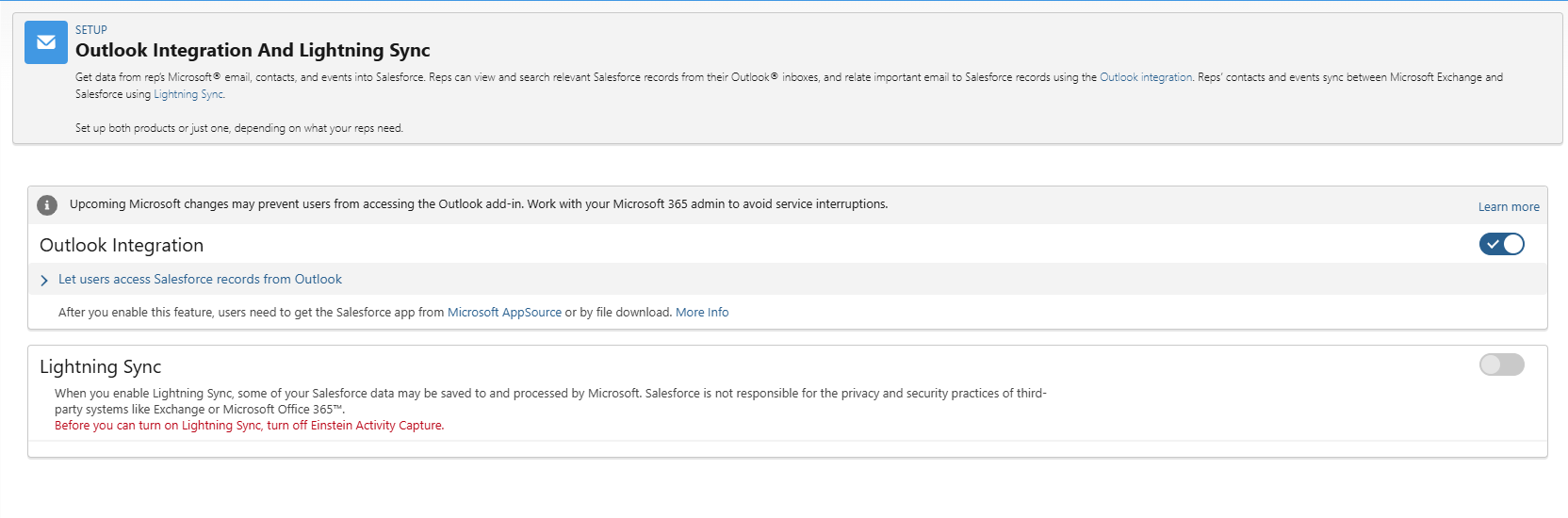
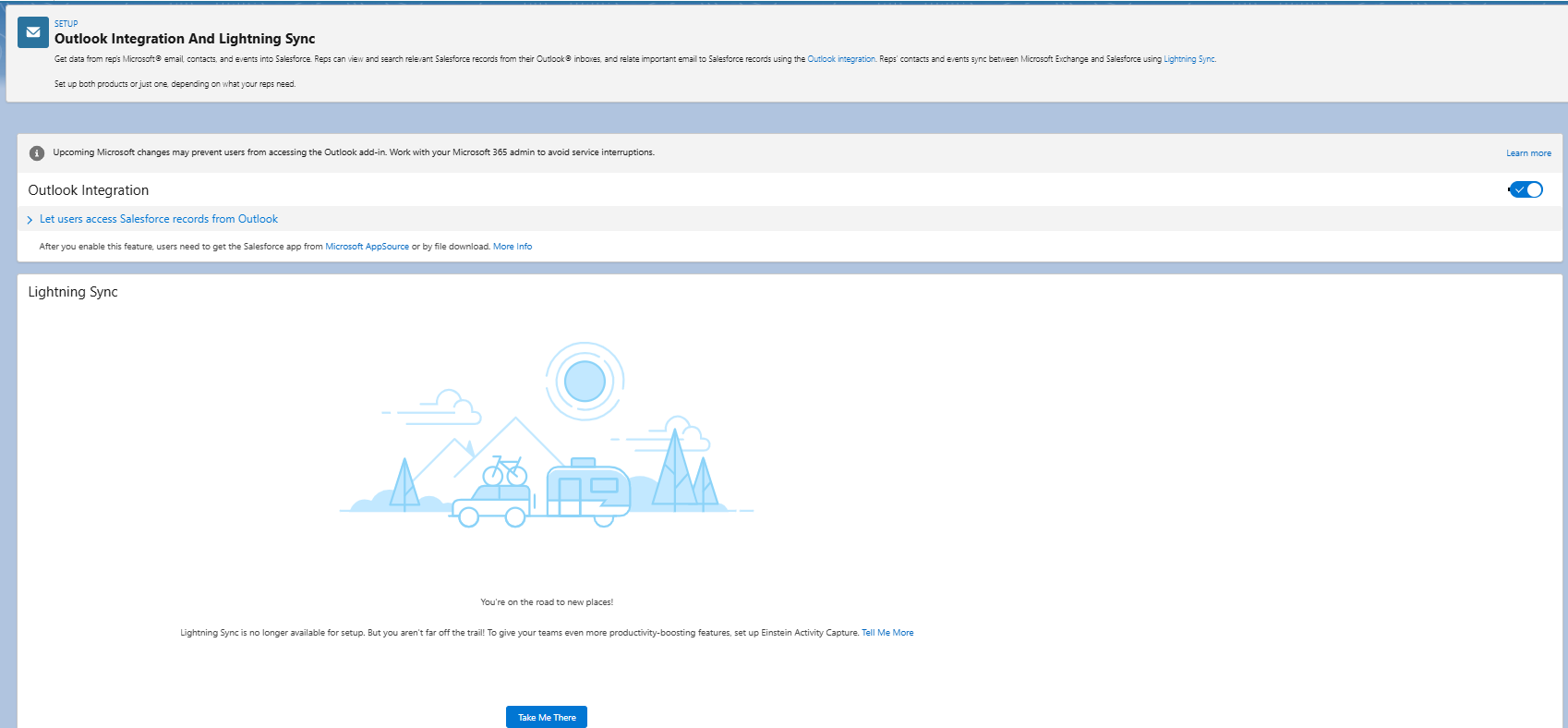
If the page looks similar to the page listed below then your firm is using Lightning Sync and you will need to follow the instructions below.
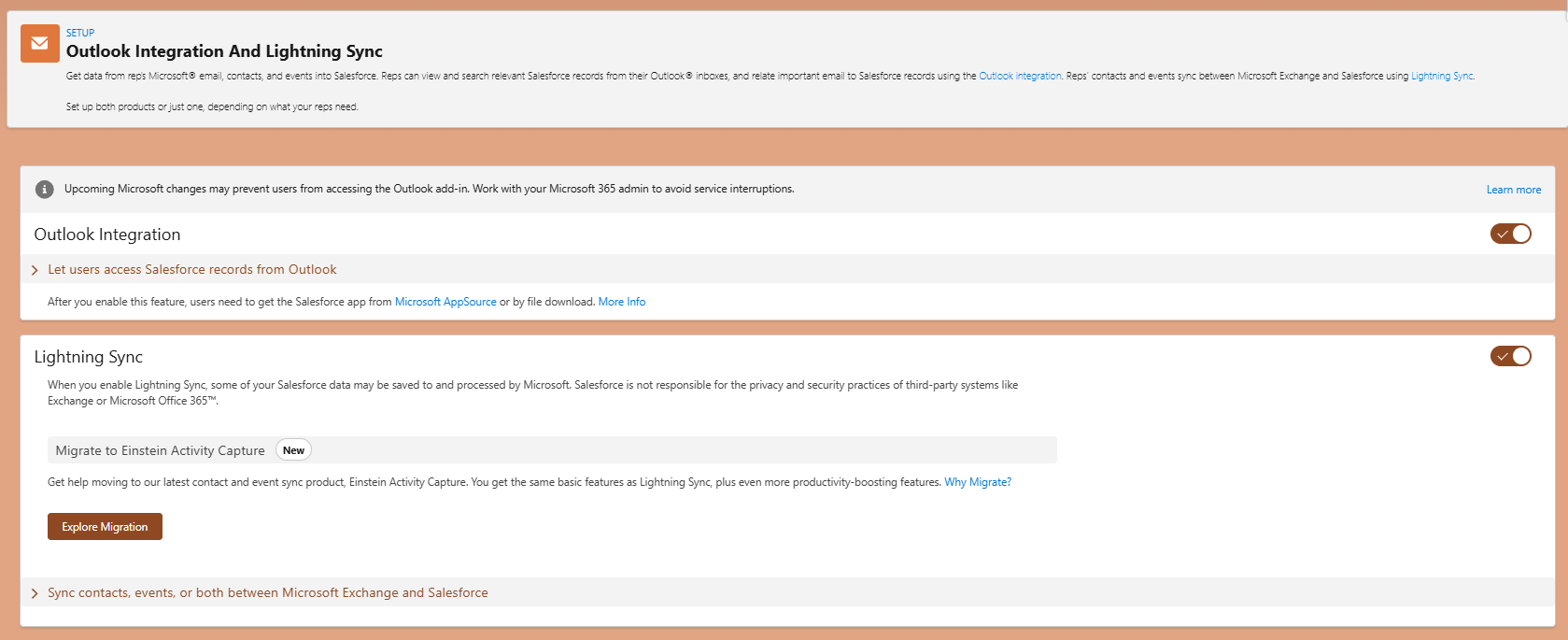
Migrating from Lightning Sync to Einstein Activity Capture
If your firm is currently using Lightning Sync then you will need to migrate to EAC. You can follow this article to learn more about how to migrate to EAC and how to do so, Migrating from Lightning Sync to Einstein Activity Capture. If you need additional help to walk through this process, you can submit a ticket to our Support team and they will assist.
Einstein Activity Capture
If you have determined that you use Einstein Activity Capture or migrated from Lightning Sync to EAC then you will continue here. The next step will be to update from your EWS connection to Microsoft Graph. For this, you will need to coordinate with your Global Admin for Microsoft, which may be you, another team member, your IT team or a Microsoft Service Provider (MSP).
Updating to Microsoft Graph (Microsoft)
The first step will be for your Microsoft Global Admin to implement Microsoft Graph. The path taken will depend on how your EAC is currently setup and how you would like the connection to be configured moving forward. At this time, most firms are either setup with User-Level OAuth or Application Level OAuth. Role Based Access Control has not been an option with EWS but can be configured with Microsoft Graph. Salesforce and Microsoft have coordinated to create admin consent flows that can be used to automate the scope authorization for Microsoft Graph. For more information about the the authentication levels available with Microsoft Graph, the associated Microsoft scopes, and the admin consent, see Microsoft Graph API and Use the Microsoft Graph API
User-Level OAuth
This authentication method requires each Einstein Activity Capture user to connect their own Microsoft Office 365 account
Role Based Access Control (RBAC)
This authentication method combines OAuth's delegated authorization with role-based permissions. Users get access to resources through predefines roles defined with an app in Microsoft Azure. You can configure the authentication mode for all EAC users at the same time. RBAC OAuth requires Azure setup as a prerequisite. For more information on configuring RBAC, see Configuring Einstein Activity Capture with Microsoft Graph API and RBAC.
Application Level OAuth
This authentication method provides a broad, admin-approved access to an entire service instance. You can configure the authentication mode for all EAC users at the same time.
Updating to Microsoft Graph (Salesforce)
Once your Microsoft Global Admin has done the necessary setup for Microsoft Graph within Microsoft Azure, you will then complete the necessary steps in Elements. To do this, you will follow the below steps.
- Click on the gear in the top right-hand corner and click Setup from the dropdown that will appear
- Click into the Quick Find on the left-hand side and type in Einstein Activity Capture.
- Click on Settings under the Einstein Activity Capture section on the left-hand side
- You'll see the Settings page for Einstein Activity Capture. You'll scroll down and see a button that says Upgrade to Microsoft Graph. Next to it, you will see the connection, which will either say Org-Level OAuth or User-Level OAuth
- For steps on how to migrate to Microsoft Graph with User-Level OAuth, see Start Microsoft Graph Upgrade for User-Level Connections. Once the connection has been migrated, Users will need to manually reconnect their account for Einstein Activity Capture. For guidance on this, see Connecting Account to Einstein Activity Capture with User-Level OAuth.
- For next steps on how to migrate to Microsoft Graph with Org-Level OAuth, see Start Microsoft Graph Upgrade for Org-Level Connections
- If you're currently using User or Org-Level OAuth and would like to switch to Role Based Access Control, you will first need to migrate to Microsoft Graph and then switch to RBAC. See Change Microsoft Office 365 Authentication Level in Einstein Activity Capture on how to switch authentication methods.
Once you've completed all the steps in this article, your connection between Salesforce and Microsoft should be fully migrated from EWS to Microsoft Graph!

